

How to leverage the power of SAP UI5 in SAP BPA

Paul van Rouwendaal - Senior SAP Invoice Management & SAP Master Data Governance Consultant
Advanced workflow interface with custom forms
With our extensive knowledge and experience with SAP Business Workflow, Avelon is well acquainted with the extensive possibilities for implementing advanced workflow solutions. Since SAP Build Process Automation (BPA) is the evolution of SAP Business Workflow, we have also gained experience with BPA in recent years. Much of the functionality that was previously available in SAP Business Workflow is now also available in BPA, with the major advantage that BPA is aligned with a clean core and cloud strategy.
SAP BPA is a cloud service within the SAP Business Technology Platform (BTP). It allows you to automate both simple and more complex processes, such as an approval process for sales orders or invoices. With BPA, you can create workflows with approval steps, automatic business rules (via decision tables), read and update data in SAP S/4HANA via OData services, or link to other systems via web services. Tasks from these workflows are offered centrally to users via the Task Center app, integrated into SAP Work Zone (the cloud version of the Fiori Launchpad).
In this blog, I describe how you can apply one of SAP BPA's advanced functionalities to create a unique user experience: creating a customized user interface for a workflow task in BPA, using an SAP UI5 application that you develop in SAP Business Application Studio (BAS).
Limited layout options with the standard form editor in BPA
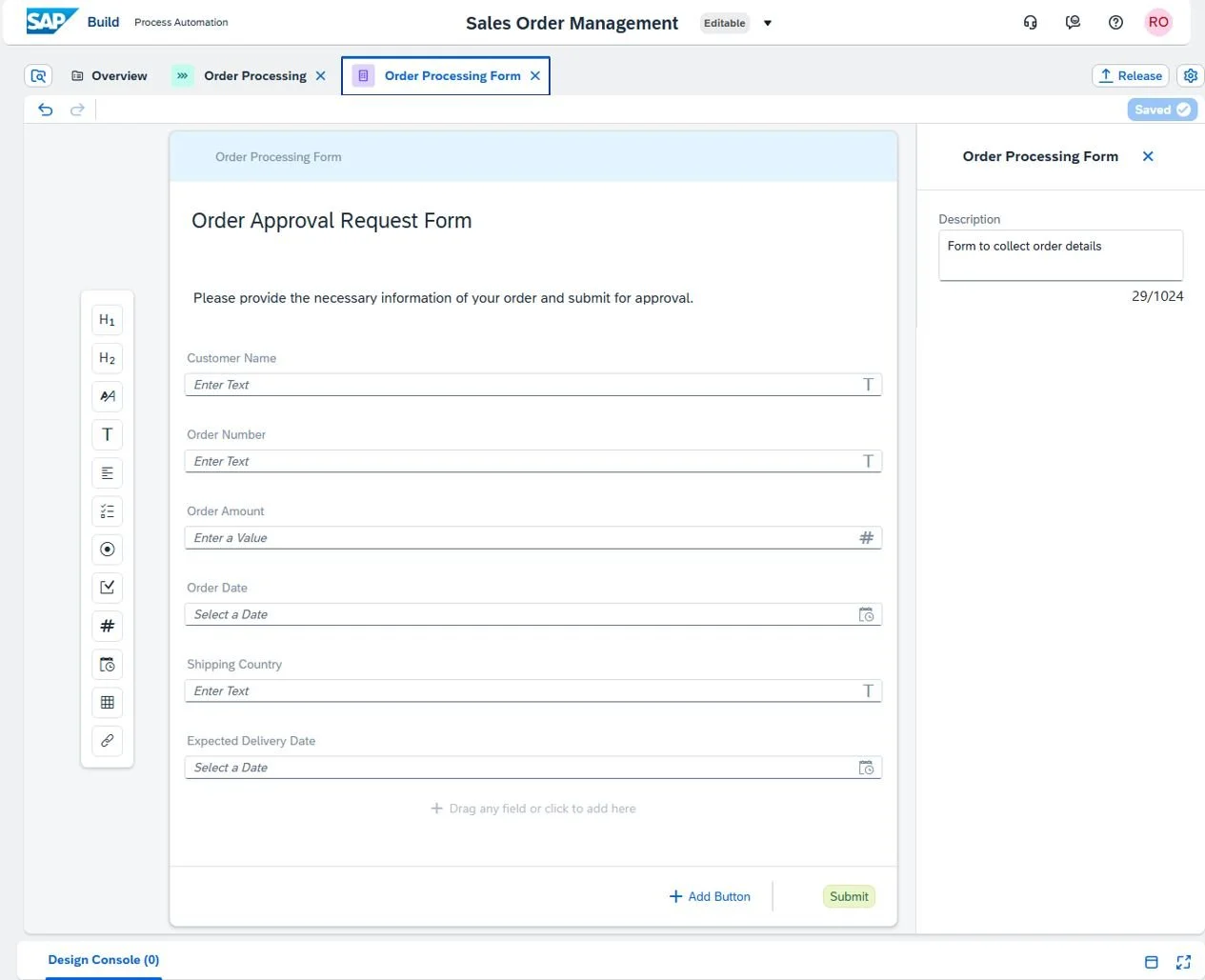
When you create a workflow process in BPA, you can easily add a form task. You can then design the form using the built-in WYSIWYG (What You See Is What You Get) editor:
This is a quick and easy way to create a form, but it has one major drawback. As you can see in the screenshot below, by default you can only place text and fields one below the other in a single column.
SAP Joule
For example, if you want to place two input fields next to each other, this is not possible with this standard WYSIWYG form editor. This limits the layout options.
This is often sufficient for simple forms. If you only need a few fields in a workflow process, this is not a problem. However, if you want to display more fields on the screen, you can use the available space much more efficiently and effectively by placing the fields in two or more columns next to each other. This makes the form clearer and more user-friendly.
Custom form design with SAP UI5
Since Q3 2023, it has been possible to create a completely custom design for user tasks in BPA. This applies to both approval tasks and other types of user tasks, such as data completion.
To do this, you first use SAP Business Application Studio (BAS) to develop an SAP UI5 application in which you design the user interface yourself. This app must meet a number of specific characteristics. You can then import the application as a new form into BPA's Process Designer and fully integrate it into your workflow process.
Step-by-step plan: from UI5 app to BPA form
To do this, follow these steps:
Create a new developer space in SAP BAS with application type SAP Fiori and the additional extension Workflow Module.
Within this developer space, you create a Multi-Target Application (MTA) project.
In this project, you will create two modules using the MTA templates Approuter Configuration and Workflow UI.
This automatically generates an SAP UI5 app with the specific characteristics required to import the application as a form into BPA at a later stage.
Multi-column form layout
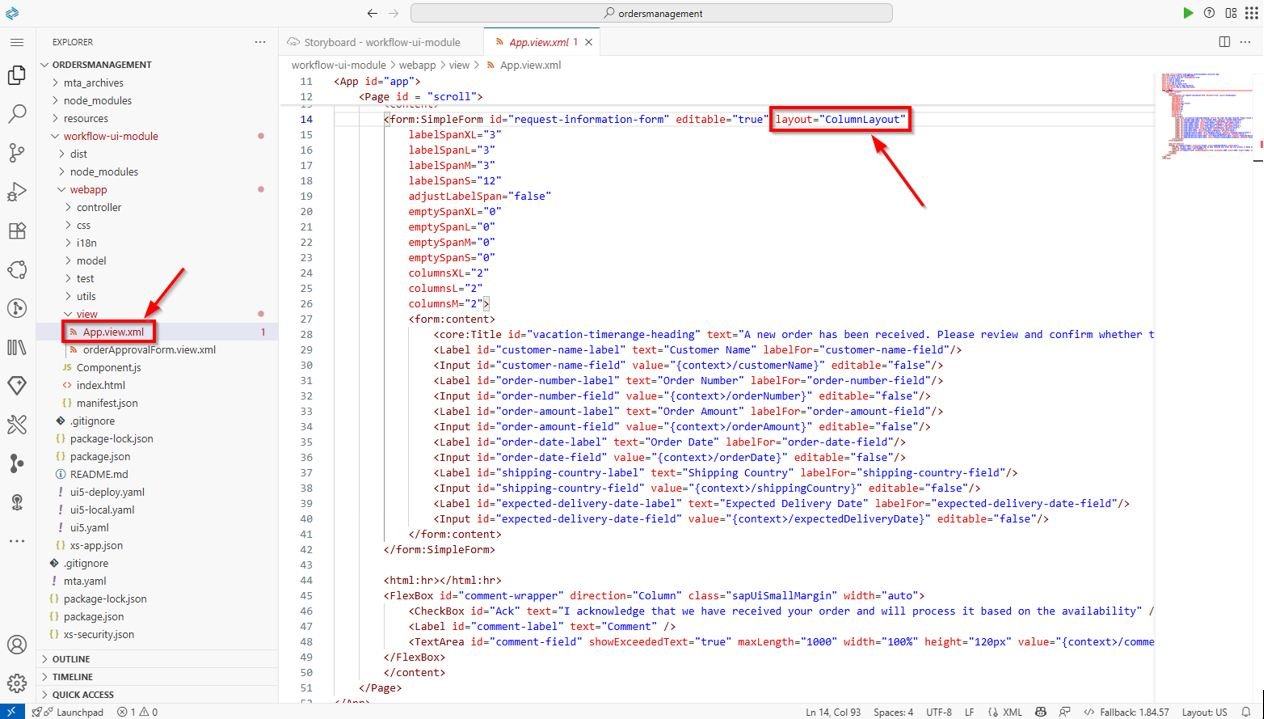
In the App.view.xml file, you can then create a form with a layout of, for example, two columns, using an SAP UI5 SimpleForm with a ColumnLayout:
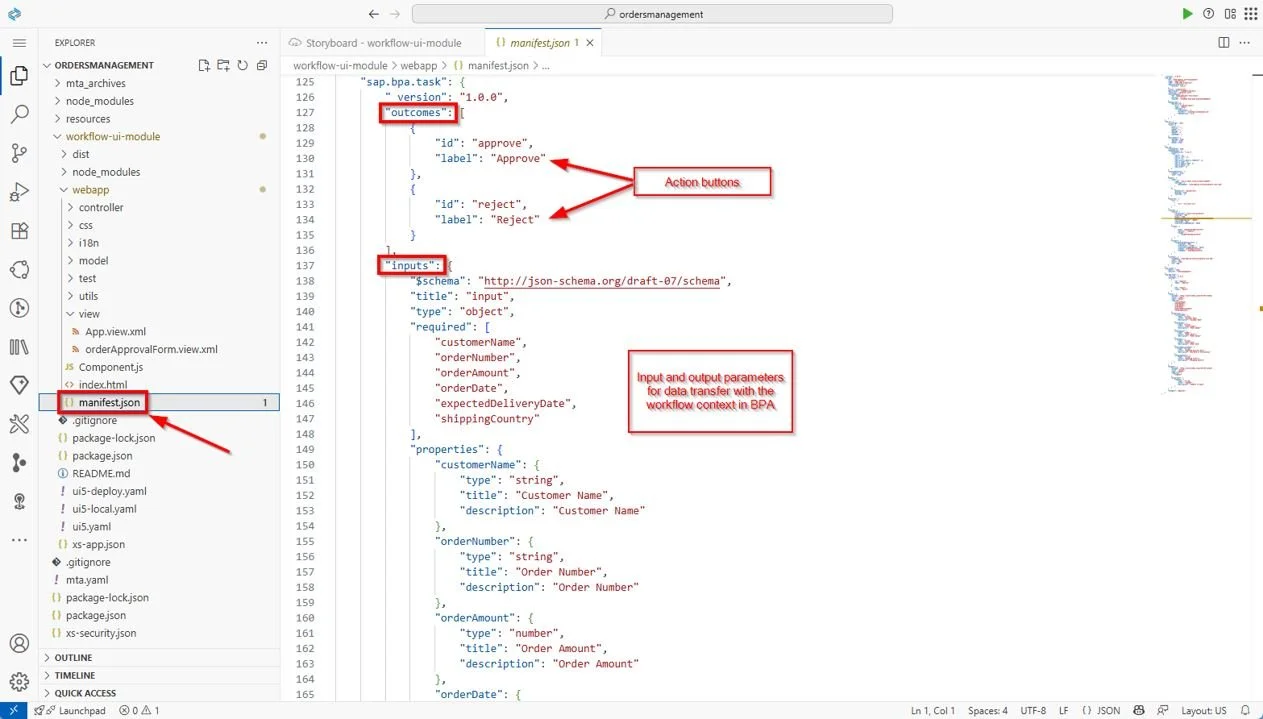
The manifest.json file must contain a sap.bpa.task code block. Here you define the action buttons and the input and output parameters for the data flows between the task context and the workflow context in BPA.
Implementing and importing applications in BPA
After distributing the application on SAP BTP, the SAP UI5 app becomes visible in the overview of HTML5 applications within the subaccount.
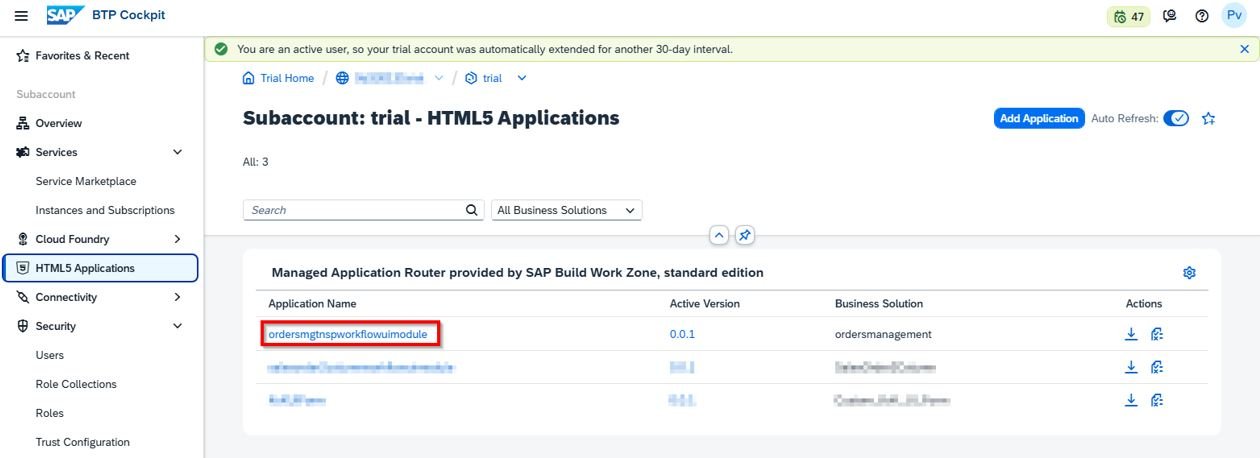
From that moment on, you can import the application into BPA's Process Designer.
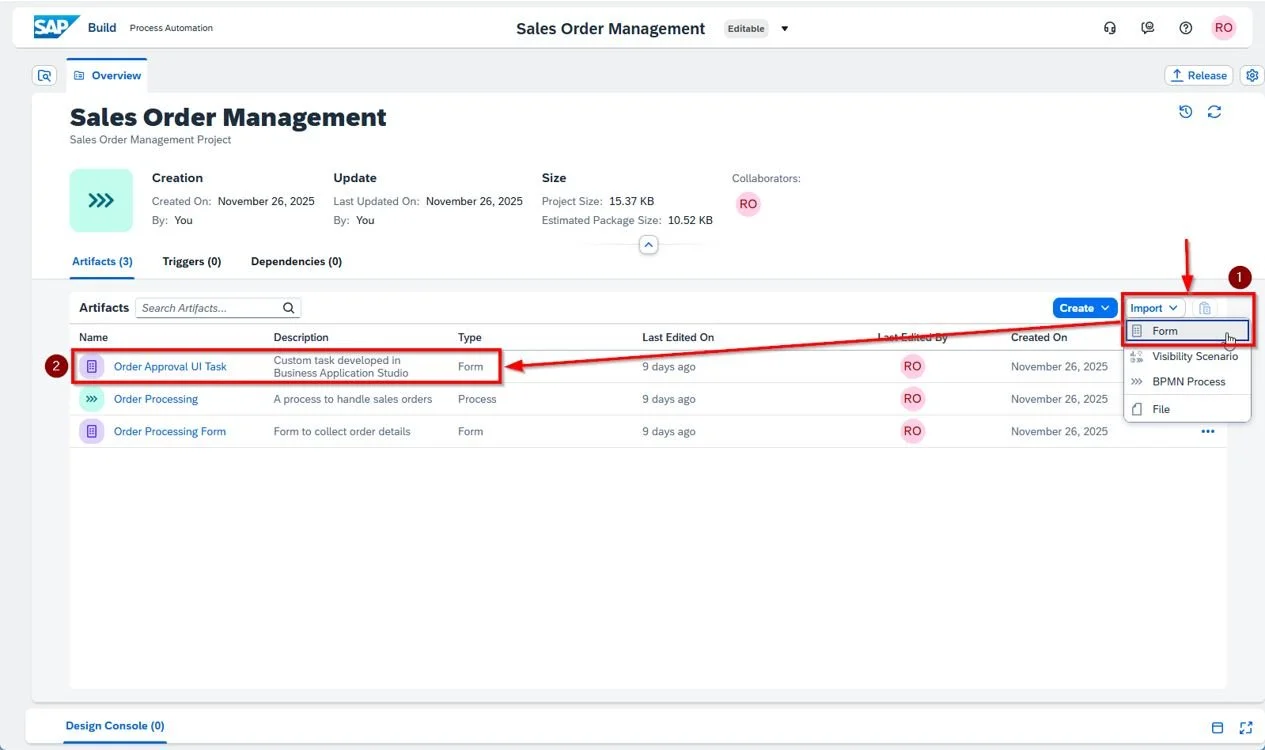
This import function uses the manifest.json file to determine all the characteristics of the task, such as actions, input and output parameters. After importing, the form can easily be added to the process as a new task.
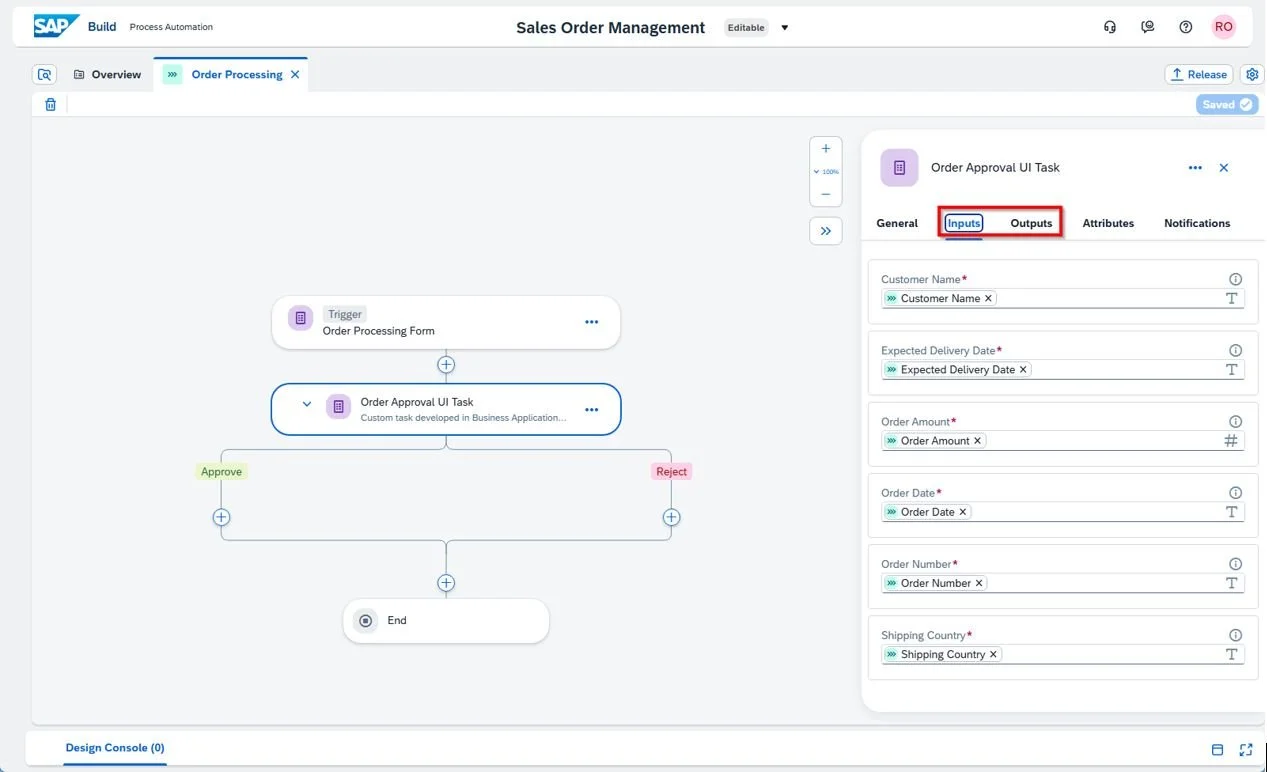
You can then link the inputs and outputs of the task to the workflow context and further shape the outcomes of the task (such as approve and reject).
The end result: a better user experience
As a result, the task appears as follows in the My Inbox app.
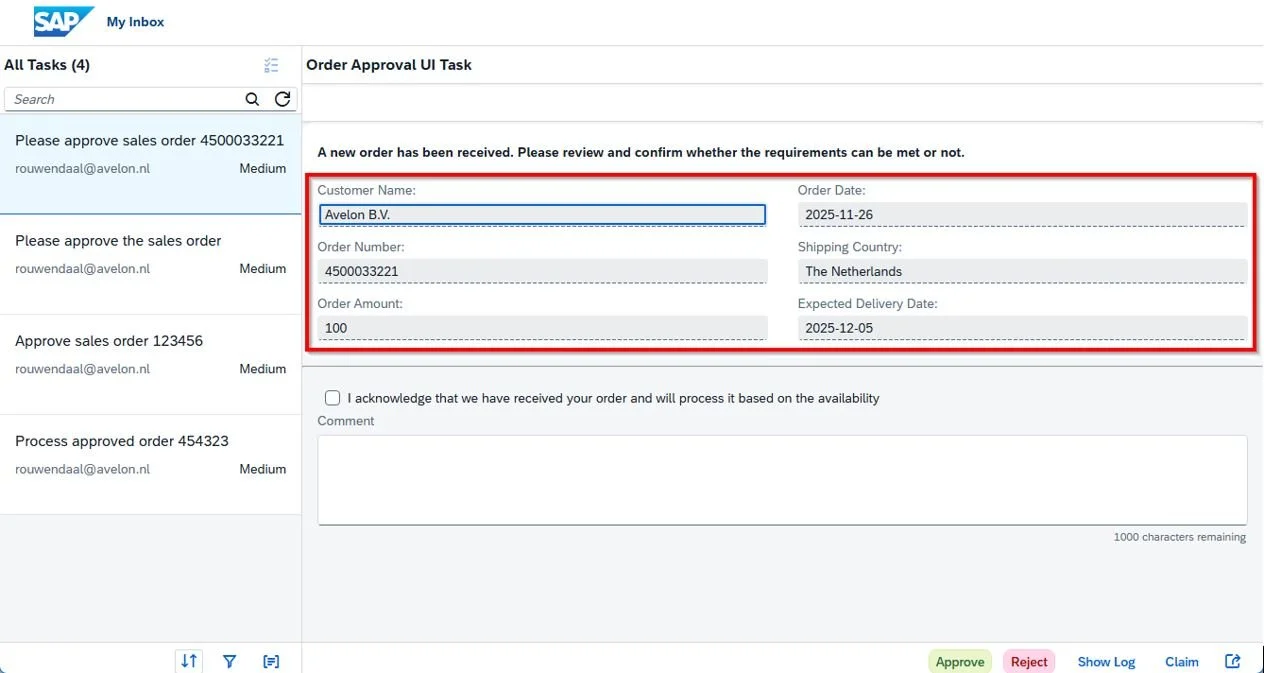
The six form fields are now neatly displayed in two columns, instead of one below the other. This creates a clearer and more user-friendly interface.
Want to get started yourself?
How you can try this out yourself is described in detail in the following SAP Learning Journey: Create an SAP UI5 Task for a Business Process. This approach does require the necessary experience with SAP BTP, SAP BAS, SAP UI5, and SAP BPA.
Want to know more?
Avelon consultants have this knowledge and experience and are happy to work with you to explore the possibilities that this solution can offer your organization.
Do you have questions about this topic, would you like to know how Avelon can support your organization in this area, or are you interested in other topics such as SAP Workflow? Please feel free to contact Sander van der Wijngaart.